Help & FAQ
Find answers to common questions about Thermal
Getting Started
Go to the Accounts page and click "Connect Account." Search for your bank, brokerage, or credit card, then sign in with your institution's credentials. Thermal connects securely without ever storing your login. Over 12,000 institutions are supported, including Chase, Bank of America, Fidelity, Schwab, and Vanguard.
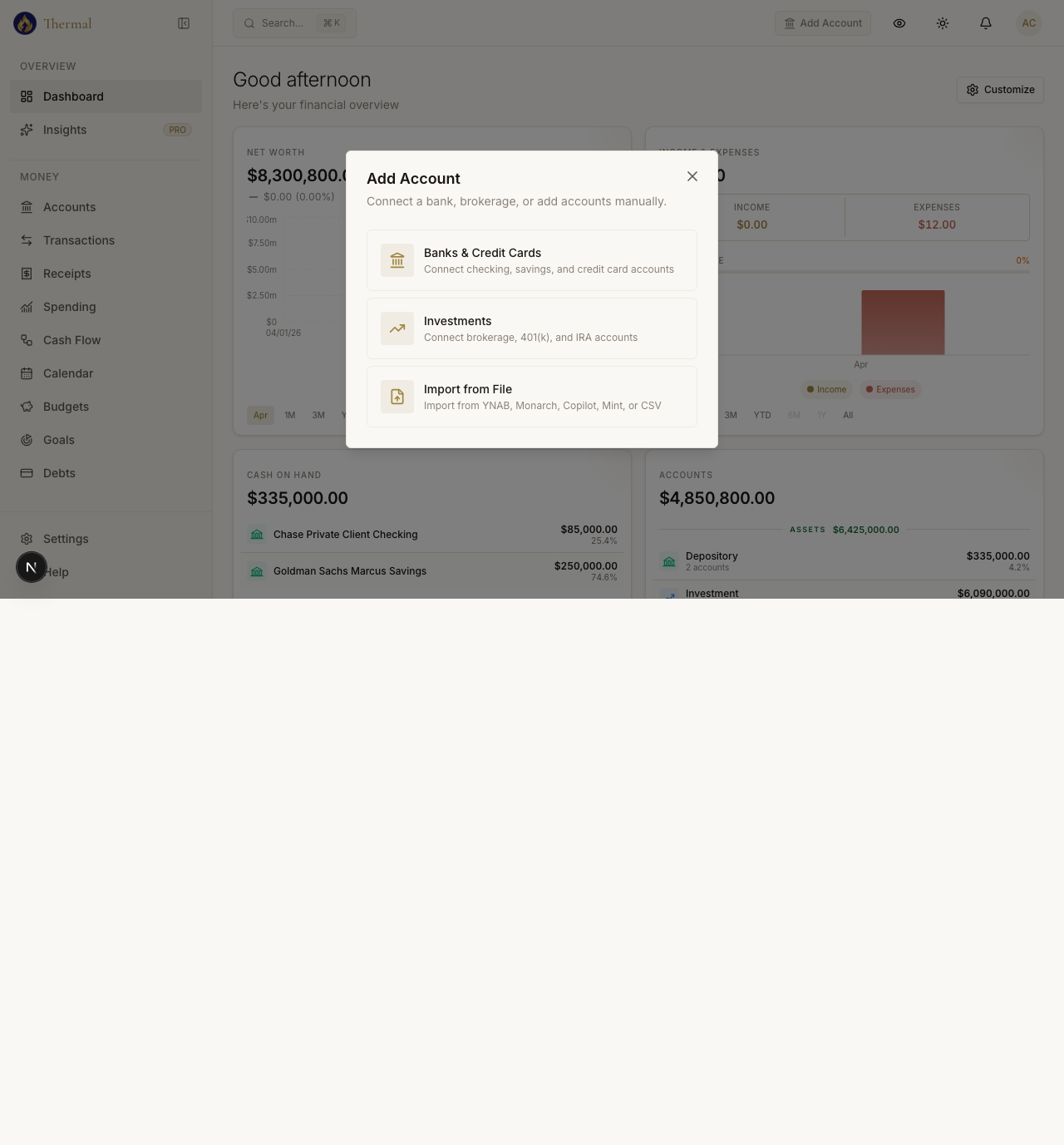
Try searching by the bank's full name or abbreviation. If it still doesn't appear, check that your institution offers online banking. Some smaller credit unions and regional banks are not yet supported. Email support@thermalfinance.com with your bank's name so we can look into adding it.
Yes. All sensitive data is encrypted with AES-256 at rest and TLS in transit. Your bank credentials are handled by a certified, bank-grade connection provider and are never stored on our servers. Your data is not sold. Service providers process data needed to deliver features, including bank connections and optional AI receipt processing. Review the privacy policy and feature notices for details.
Start your 14-day free trial to get full access to every feature in your chosen plan. No credit card is required. If you don't subscribe after the trial, your data is preserved for 30 days in case you decide to come back.
Standard ($14.99/mo) includes all core features: spending tracking, budgets, investments, retirement planning, real estate, and up to 7 connected accounts. Pro ($29.99/mo) adds AI-powered insights (The Bridge, spending anomaly detection, optimization suggestions), AI categorization, business expense tracking, an MCP server so your own AI assistant can work with your finances, up to 15 connections, and a command-line app once it ships.
Open Settings and change your plan at any time. Upgrades take effect immediately. Downgrades apply at the start of your next billing cycle. Cancel with one click and there are no fees or contracts.
Spending & Transactions
Transactions are automatically categorized when they sync from your bank. Click on any transaction to change its category. Thermal will ask if you'd like to create a rule so all future transactions from that merchant are categorized the same way.
Click on the transaction to expand it, then tap the category name to change it. Thermal will ask if you'd like to create a rule so all future transactions from that merchant are categorized the same way.
Thermal automatically detects payments between your own linked accounts (like paying a credit card from checking) and classifies them as transfers. These are excluded from spending totals since no money left your household. If a payment was misclassified, click on it and reclassify it as an expense.
Open Insights and find Spending Flow. It shows how money flows from your income sources through expense categories. Wider bands mean more money flowing through that path. Hover over any band to see exact amounts. It updates in real time as new transactions come in.
Click on any transaction, then tap the split icon to divide it across multiple categories. This is useful for large purchases that span categories, like a Costco run with both groceries and household items.
Open the Transactions page and type in the search bar. It searches merchant names, amounts, and notes. Use the filters to narrow by date range, category, account, or amount. All search results can be exported to CSV.
Thermal automatically detects recurring charges (subscriptions, rent, utilities) by analyzing your transaction history. Open the recurring tab on your transactions page to see them with predicted amounts and dates. Mark any transaction as recurring or dismiss false detections from the transaction detail view.
Budgets
Go to the Budgets page and set a monthly target for each spending category. Thermal tracks your progress in real time as transactions come in. The progress bar shows how much you've spent vs. your target. Categories turn amber when you're close to the limit and red when you've gone over.
Enable rollover on any budget category to carry unspent money into the next month. If you budget $200 for dining and only spend $150, the extra $50 rolls into next month, giving you $250. Overspending also rolls forward as a deficit.
Open a new month on the Budgets page and Thermal will offer to copy your targets from the previous month. Adjust individual categories as needed after copying.
Investments
Connect your brokerage accounts from the Accounts page. Thermal consolidates all your holdings into a single view on the Investments page. See your total allocation, individual positions, unrealized gains/losses, and dividend income across every account.
Open any position on the Investments page and expand the tax-lot section. It shows each purchase lot with cost basis, purchase date, and gain/loss. Use this to make tax-efficient decisions about which shares to sell (FIFO, specific identification, etc.).
Security market data is cached from MarketStack and refreshed on a schedule. You can request a manual refresh for stale prices, but recently refreshed prices are held to avoid unnecessary provider calls.
Connect your crypto exchange accounts from the Accounts page, or manually add crypto holdings on the Crypto page. Search for any coin or token by name or ticker. Prices update hourly alongside your other investments.
Retirement Planning
Go to the Retirement page, configure your scenario (retirement age, accounts, spending), and click "Run Simulation." Thermal runs 10,000 possible market scenarios, randomizing returns, inflation, and other factors to give you a realistic probability that your plan succeeds.
Open the Retirement page and select a strategy from the dropdown. Thermal supports 8 strategies: the classic 4% rule, Guyton-Klinger guardrails (the default), dynamic percentage, variable percentage withdrawal (VPW), floor-and-ceiling, endowment-style, custom fixed amount, and Buy-Borrow-Die. Each has different trade-offs between income stability and portfolio longevity.
Open The Bridge from the Retirement page to see how a decision you make today shifts your retirement date and success probability. It models Roth conversions, allocation changes, contribution-rate adjustments, and other portfolio moves against your real accounts, so you can see exactly when you can stop working. This is a Pro feature.
Go to the Retirement page and open the Social Security section. By default, Thermal estimates your benefit from your current income and age. For more precision, import your full earnings history from your Social Security account. The simulator factors in your expected benefit at your planned claiming age.
The simulator models federal taxes plus all 50 state tax systems automatically. It tracks three account buckets (traditional/pre-tax, Roth, and taxable) and handles Required Minimum Distributions, Roth conversion ladders, and tax-efficient withdrawal ordering.
Real Estate
Go to the Real Estate page and click "Property." Enter the address using the autocomplete, set the current value, and optionally add your purchase price, mortgage, and appreciation rate. You can also enable automatic valuation to get monthly property value estimates.
On the Real Estate page, find your property card and click "Enable automatic valuation." Thermal will search for your property and show you the results with a Confirm button. Once confirmed, your first estimate runs immediately and updates monthly after that.
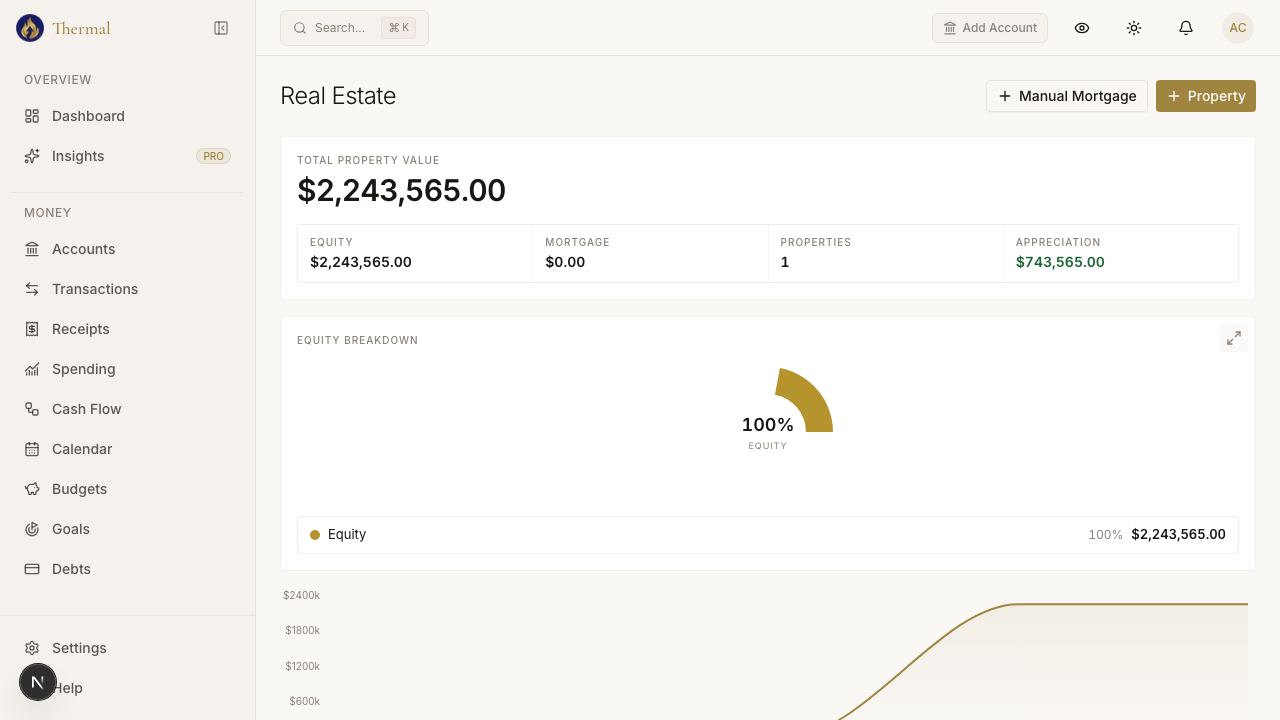
Go to Real Estate and find your mortgage in the "Unlinked Mortgages" section. Click "Link to Property" to associate it with the right property. Once linked, Thermal calculates your equity automatically.
Screenshot: Unlinked Mortgages section showing a mortgage card with the 'Link to Property' button, and the property picker dialog that appears when clicked
Add as many properties as you need from the Real Estate page. Each one can have its own linked mortgage, appreciation rate, and automatic valuation. The summary card at the top shows your total property value, equity, and appreciation across all properties.
Vehicles
Go to the Net Worth page, click "Add Asset," and select "Vehicle" as the type. Enter the year, make, model, trim, and mileage. You can also add a valuation URL for automated monthly value estimates.
Paste a valuation URL for your vehicle into the URL field on the asset. Thermal automatically fetches the private party value from the page and updates the estimate monthly, the same way property valuation works.
Search for your vehicle on any major car valuation site by year, make, model, and trim. Enter your mileage, then copy the URL from your browser's address bar and paste it into the valuation URL field in Thermal.
Receipts & Order Sync
Take a photo of any receipt (or upload an image) on the Receipts page. Thermal's AI extracts the merchant, date, line items, and total, then matches the receipt to a bank transaction and attaches the itemized breakdown. You can see exactly what you bought within each transaction.
Install the Thermal extension from the Chrome Web Store and sign in with your Thermal account. Once installed, visit your order history on a supported retailer's website and the extension will sync your orders automatically.
Make sure you're signed in to both the Thermal extension and the retailer's website. Navigate to your full order history page (not just recent orders). If orders still don't appear, try clicking the extension icon and selecting "Sync now." Some orders take a few minutes to match with bank transactions.
The extension currently supports Amazon, Target, Costco, and Walmart. It captures order details including individual items, prices, and delivery tips. More stores are on the roadmap.
Yes. For grocery and delivery orders, the extension captures tips and gratuities as a separate field. Check your receipt details to see exactly how much you tipped on each order.
Households & Sharing
Go to Settings and enter your partner's email to send an invite. They'll join as a household member with full access to shared data: combined net worth, unified budgets, and shared goals.
Use the owner filter dropdown in the header to toggle between everyone's data, just your own, or a specific household member's. This is useful when you want to see personal spending separate from household totals.
Net Worth & Cash Flow
Net worth equals total assets minus total liabilities. Assets include bank balances, investment portfolios, crypto, real estate, and manual assets. Liabilities include credit card balances, loans, and mortgages. Thermal takes a daily snapshot so you can track the trend over time.
Open Insights to compare income and expenses over time. Use Recurring to review upcoming bills and expected charges.
Chrome Extension
Search for "Thermal Finance" in the Chrome Web Store and click "Add to Chrome." Once installed, click the extension icon in your toolbar and sign in with your Thermal account. The extension is ready to sync as soon as you visit a supported store.
Visit your order history page on any supported retailer. The extension reads your order details (items, prices, delivery tips) and sends them to Thermal, which matches each order to the corresponding bank transaction. You get a full itemized breakdown attached to each transaction.
The extension currently supports Amazon, Target, Costco, and Walmart. More stores are on the roadmap. Each store captures item-level detail including quantities, individual prices, and delivery tips where applicable.
First, make sure you're signed in to both the extension and the retailer's website. Navigate to the full order history page, not just recent orders. Click the extension icon and select "Sync now" to force a refresh. If orders still don't appear after a few minutes, try removing and re-adding the extension.
The extension only activates on supported retailer sites and reads order data. It never accesses passwords, payment info, or browsing history on other sites. All data is transmitted over encrypted connections to your Thermal account.
CLI & API Access
The Thermal CLI lets you query your financial data from the command line. Pull account balances, search transactions, check budget progress, and export data without opening the app. It's designed for power users who prefer terminal workflows.
Install the CLI with your package manager, then run the login command to authenticate with your Thermal account. Your API key is stored locally and never sent anywhere except Thermal's servers. Full setup instructions are in the CLI documentation.
Use the CLI to list accounts and balances, search transactions by merchant or amount, check budget status for any month, export data to CSV or JSON, and trigger a manual sync of your connected accounts. Run the help command for the full list.
Yes. The Thermal API works with any AI assistant that supports tool use or function calling. Connect your assistant to Thermal so it can answer questions about your spending, balances, and budget progress using your real financial data.
ChatGPT & AI Assistants
Go to Settings, then open the Integrations section. Click "Connect AI Assistant" and follow the authorization flow. Once connected, your assistant can query your Thermal data when you ask it financial questions.
Ask about your spending patterns ("How much did I spend on dining this month?"), budget status ("Am I on track for groceries?"), account balances, net worth changes, and recurring charges. The assistant pulls real-time data from Thermal to answer.
The assistant can only read data you've explicitly authorized: account balances, transactions, budgets, and net worth. It cannot modify anything, initiate transfers, or access your bank credentials. You control which data categories are shared in Settings.
Go to Settings, open the Integrations section, and click "Revoke" next to the assistant you want to disconnect. Access is removed immediately and the assistant can no longer query your data.
Security & Privacy
Go to Settings and open the Security section. Enable TOTP-based 2FA and scan the QR code with any authenticator app (Google Authenticator, Authy, 1Password, etc.). Once enabled, you'll need the code at every sign-in.
Open Settings and scroll to the Data section. Click "Export" to download all your data as JSON (accounts, transactions, budgets, investments, everything). Click "Delete Account" to permanently remove all your data from our servers within 30 days.
Disconnecting stops syncing new transactions but preserves all existing data. The account and its transaction history remain in Thermal until you explicitly delete them. Reconnect at any time from the Accounts page.
Account & Billing
Go to Settings and click "Manage Subscription." This opens the billing portal where you can update your credit card, view invoices, and manage your billing details.
If you don't subscribe by the end of your 14-day trial, you'll lose access to the app features but your data is preserved for 30 days. Subscribe at any point during that window and everything is right where you left it.
We don't offer prorated refunds for partial months, but you can cancel at any time and your subscription stays active through the end of your current billing period. No charge after that.
Can't find what you're looking for?
Reach out and we'll get back to you as soon as we can.
Contact Support